


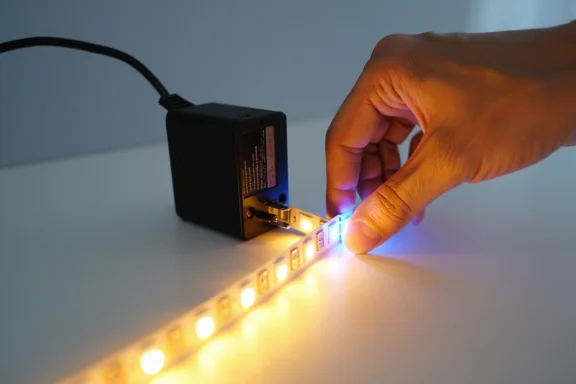
LED lighting has transformed the way we illuminate our homes and workspaces. From energy efficiency and long lifespan to smart features and customizable brightness, LED lights are now the go-to choice for modern lighting. But despite their advanced technology, LED lights aren’t immune to problems. Flickering, unresponsive controls, incorrect colors, or lights that won’t turn on properly are more common than you might think.
In many cases, these issues don’t mean your LED lights are broken. Instead, they simply need a reset. Understanding how to reset LED lights can save you time, money, and unnecessary frustration. A proper reset can restore normal function, fix connectivity issues, and help your lights perform as intended without replacing them.
In this guide, we’ll explore why LED lights need a reset, the signs that indicate a reset is required, and step-by-step methods to reset different types of LED lights safely. Whether you’re dealing with standard LED bulbs, smart LEDs, or LED strip lights, this article will help you get your lighting back on track.
Key Highlights
- Common reasons LED lights malfunction and need a reset
- Clear signs your LED lights are due for a reset
- Safe, step-by-step reset methods for different LED types
- How to reset smart LED lights, strips, and fixtures
- Safety tips to avoid damaging your lights or wiring
- When resetting isn’t enough and replacement is needed
What Does Resetting LED Lights Mean?
Resetting LED lights means restoring them to their default or factory settings. This process clears temporary errors, refreshes internal drivers or controllers, and resolves communication issues—especially in smart LED systems.
Unlike traditional incandescent bulbs, LED lights rely on electronic components such as drivers, capacitors, and sometimes wireless modules. These components can occasionally become confused due to power fluctuations, improper shutdowns, or software glitches. A reset helps recalibrate the system, allowing the light to function correctly again.
Why Do LED Lights Need a Reset?
1. Power Surges and Voltage Fluctuations
Power interruptions, surges, or inconsistent voltage can disrupt the internal electronics of LED lights. Even a brief outage can cause LEDs to behave unpredictably—flickering, dimming, or failing to turn on. Resetting clears these temporary faults.
2. Smart LED Software Glitches
Smart LED bulbs and fixtures depend on firmware and wireless communication. App updates, Wi-Fi changes, or syncing errors can cause lights to stop responding. A reset often restores communication between the light, app, and network.
3. Incorrect Color or Brightness Settings
LED strip lights and color-changing bulbs sometimes get stuck on the wrong color or brightness level. Resetting reverts them to default settings, fixing color inconsistency or uneven lighting.
4. Overheating Issues
Excessive heat can temporarily affect LED performance. Some LEDs dim or shut off to protect internal components. After cooling down, a reset may be needed to restore normal operation.
5. Installation or Wiring Changes
If you recently installed new switches, dimmers, or drivers, your LED lights may need a reset to adapt to the new setup.
Signs Your LED Lights Need a Reset
Not sure whether a reset will help? Look out for these common signs:
- LED lights flicker or pulse intermittently
- Lights won’t turn on despite having power
- Smart LEDs don’t respond to app or voice commands
- LED strips display the wrong color or pattern
- Lights turn on but remain dim or uneven
- LEDs behave erratically after a power outage
If these problems persist after basic troubleshooting, resetting is often the next best step.
How to Reset LED Lights Safely
Resetting LED lights is usually simple, but safety should always come first. The exact method depends on the type of LED light you’re using.
Method 1: Resetting Standard LED Bulbs (Non-Smart)
This method works for most basic LED bulbs.
Steps:
- Turn the light switch off.
- Leave it off for 10–15 seconds.
- Turn the switch on for 2–3 seconds.
- Turn it off again for 10 seconds.
- Turn it on and leave it on.
This power-cycling process resets the internal driver and often resolves flickering or non-responsive behavior.
Method 2: Resetting LED Lights Using Power Cycling
Some LEDs require a repeated on-off sequence.
Steps:
- Turn the light on for 3 seconds.
- Turn it off for 3 seconds.
- Repeat this cycle 4–5 times.
- Leave the light on at the end.
If done correctly, the light may blink or change brightness briefly, indicating a successful reset.
Method 3: How to Reset Smart LED Lights
Smart LED lights typically have brand-specific reset procedures, but most follow a similar pattern.
General Steps:
- Turn the smart LED on.
- Turn it off and on repeatedly (usually 5–6 times).
- Watch for blinking, color cycling, or dimming—this signals reset mode.
- Open the manufacturer’s app and re-add the device.
Some smart LEDs also include a “Reset” option directly within the app.
Method 4: Resetting LED Strip Lights
LED strip lights often include controllers that require resetting.
Steps:
- Unplug the LED strip from the power source.
- Wait 30–60 seconds.
- Plug it back in.
- If using a controller, press and hold the reset button (if available) for 5–10 seconds.
For remote-controlled strips, remove the batteries from the remote during the reset for best results.
Method 5: Resetting LED Lights with a Dimmer Switch
Incompatible dimmer switches are a common cause of LED issues.
Steps:
- Turn the dimmer to the lowest setting.
- Switch the light off.
- Wait 10 seconds.
- Turn the switch on and slowly increase brightness.
If the issue continues, ensure the dimmer is LED-compatible.
Safety Tips When Resetting LED Lights
- Always keep your hands dry when operating switches
- Avoid touching exposed wiring or fixtures
- Do not reset lights repeatedly in quick succession
- Allow overheated LEDs to cool before resetting
- If unsure, turn off power at the circuit breaker
Safety should never be compromised, especially when dealing with electrical systems.
Common Mistakes to Avoid
- Resetting without checking the power source
- Ignoring compatibility issues with dimmers
- Using incorrect reset sequences for smart LEDs
- Assuming a reset will fix physical damage
- Overlooking manufacturer instructions
A reset is helpful—but it’s not a cure-all.
When Resetting LED Lights Doesn’t Work
Sometimes, resetting isn’t enough. You may need to replace or repair your LED lights if:
- The driver is damaged
- LEDs have visible burn marks
- Lights continue flickering after multiple resets
- The fixture overheats consistently
- Smart LEDs won’t reconnect even after a factory reset
In these cases, replacement is often more cost-effective than repair.
How Often Should LED Lights Be Reset?
LED lights don’t need frequent resets. Ideally, a reset should only be performed when there’s a clear issue. Repeated problems may indicate underlying electrical or compatibility issues that need professional attention.
Final Thoughts
LED lights are reliable, efficient, and long-lasting—but they aren’t immune to glitches. Knowing why your LED lights need a reset and how to do it safely empowers you to solve common problems without stress or unnecessary expense.
By understanding how to reset LED lights, following proper safety precautions, and recognizing when a reset is no longer effective, you can extend the life of your lighting system and enjoy consistent, high-quality illumination.
When in doubt, consult the manufacturer’s guidelines or seek help from a qualified electrician. A simple reset today can save you from bigger lighting headaches tomorrow.
